Announcements
CNH Digital is already a reality for millions of drivers in Brazil. It has the same legal value as the physical document.
Activating yours is simpler than it sounds. This guide shows you the complete step-by-step to have your mobile enablement.
We will explain what to do if the document does not appear in the application and how to resolve the most common errors.
What is CNH Digital and why is it important?
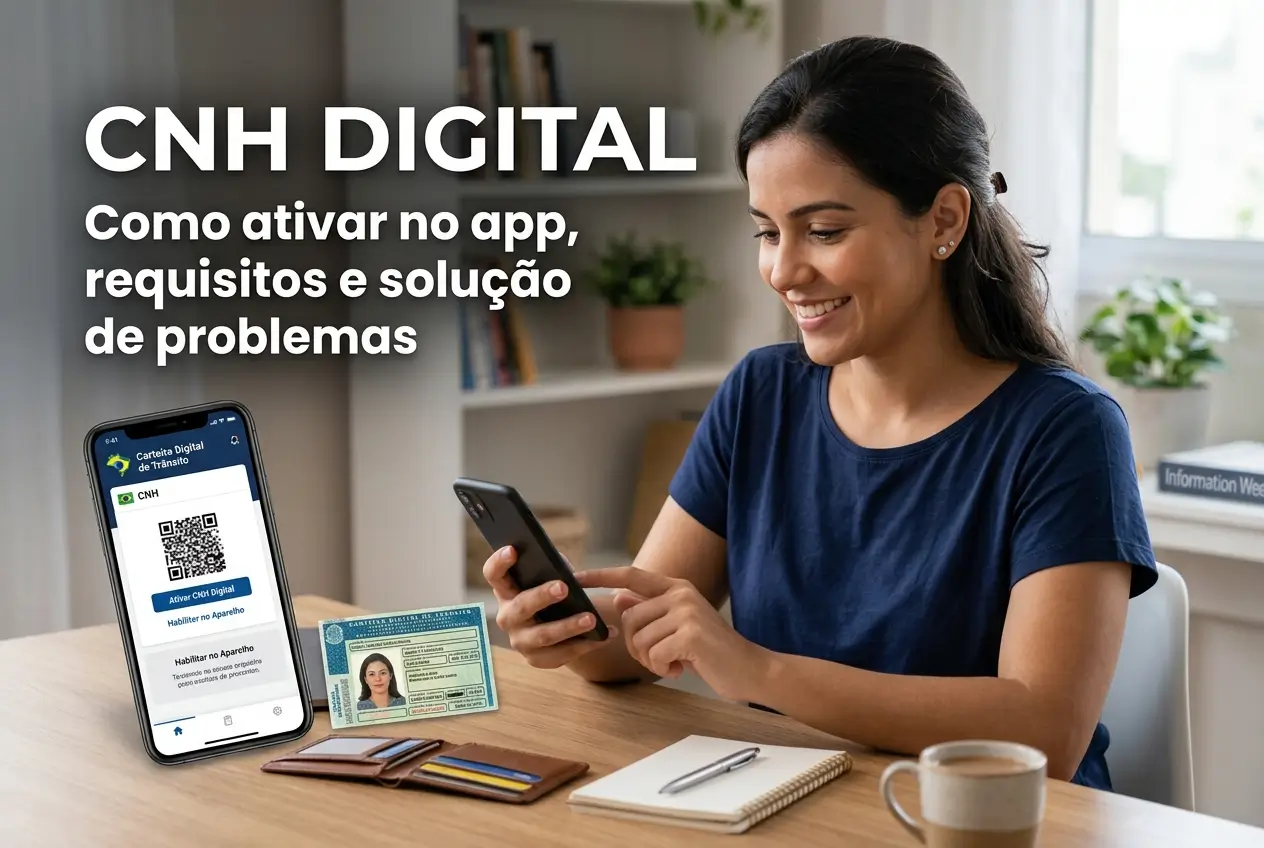
CNH Digital, or CNH-e, is the electronic version of your National Driver's License. It is inside the app “Digital Traffic Wallet” (CDT).
She's got exactly the same legal validity of the printed document.This is guaranteed by law throughout the national territory.
The main advantage is the practicality.You no longer need to walk with the physical wallet, reducing the risk of loss or theft.
In addition, the CDT app also gathers the vehicle document (CRLV-e). Everything you need to drive is organized on your smartphone.
Rest assured: presenting CNH Digital in a blitz is your right. The transit agent is obliged to accept and has the means to verify its authenticity.
Requirements: What do you need to activate?
Before you start, it is critical to check if you meet some conditions. Without them, activation will not work.
The good news is that most drivers qualified today already meet these requirements.
- CNH with QR Code: Only driver's licenses issued as of May 2017 have the QR code on the back.
- Updated mobile number: Your phone number needs to be up to date in your state's Detran record.
- Account on Gov.br: You will need a Silver or Gold level account on the federal government portal.Creating or upgrading is free.
- Installed application: Download the official app “Digital Traffic Wallet & CDT” on your app store (Google Play or App Store).
If your CNH is old and does not have the QR Code, you will need to request a second way or wait for renewal to be able to use the digital version.
Step by step to activate your Digital CNH in the app
With everything in hand, the activation process is straightforward. Follow each step carefully to avoid mistakes.
- Install the CDT App: Download and install the “Digital Traffic Wallet application” on your mobile phone. Watch out for fake apps.
- Log in with Gov.br: Open the app and click on “Enter with gov.br”. Enter your CPF and government account password.
- Authorize the use of data: The application will ask for authorization to use your personal data. Accept to continue.
- Select“Habilitation”: From the main menu of the app, tap the option“Habilitation”, and then tap “Touch to download your CNH”.
- Validate one of the ways: The app will offer some validation options. The most common is “Validation by mobile ( QR Code reader)”.
- Scan QR Code: Use your phone's camera to scan the QR Code that sits inside your physical CNH.
- Take the life test: The app will ask for a “proof of life”. It is a facial recognition test to confirm your identity.
- Create your access key: Finally, you must register a 4-digit password. This key will be used whenever you open the document.
Ready! After these steps, your CNH Digital will be downloaded and will be available in the application, even if you are without internet.
QR Code does not work or is unreadable? See the outputs
A common problem is that the QR Code is damaged, erased, or simply not recognized by the camera on the phone.
This can happen by natural wear of the document. If the camera can not read the code, do not despair.
The first option is to try validation using a Digital Certificate. This option is more common for companies, but individuals may also have.
If you do not have a certificate, the solution is to look for Detran. You can go to a service station in person.
Important tip: In Detran, explain that you need to validate the CNH Digital, but the QR Code is not working.
In some cases, the only way out will be to ask for a second way from CNH. Thus, you will receive a new document with a perfect QR Code.
My CNH does not appear in the app. What to do?
You followed all the steps, but CNH just does not load in the application? Several factors can cause this problem.
Let's look at the most common reasons and how you can solve them. The solution is usually simple.
First, check if your data (name, CPF, date of birth) are exactly alike in the Gov.br register and in the Detran system.
Any minor disagreement, such as a different bachelor or married name, can block the synchronization of information.
Another point: the problem may be a temporary instability. Close the application, wait a few minutes and try again.
If the error persists, the path is to contact the Detran of your state. They can check for any pending or error in your record.
- Divergent data: Correct the information in Detran or Gov.br portal so that they are identical.
- Blocking in CNH: Check that your license is not suspended or revoked, which prevents the issuance of the digital version.
- Outdated app: Check in your app store if there is a new version of the CDT to install.
Security tips for using your CNH Digital
Having CNH on your phone is practical, but it requires care. The security of your document depends on the security of your device.
The first and most important tip is: protect your phone with password, biometrics or facial recognition.Do not leave the device unlocked.
If your phone is stolen or lost, you should act fast.It is possible to block access to the CDT app remotely.
Access the Senatran Service Portal, log in with your Gov.br account and request the blocking of the digital document.
Coup alert: Never share your app access password (the 4-digit key) or your Gov.br password with anyone.
The digital document is personal and non-transferable.Treat it with the same care you have with your physical CNH.
Difference between CNH Digital and CNH physical: Which to use?
That's a very common question, Legally there's no difference. Both are official documents and valid throughout Brazil.
You can choose which version to present in a traffic inspection.The decision is yours, based on the convenience of the moment.
However, it is smart to keep common sense. If you go to a place with bad internet signal or know that the battery of the cell phone may run out, take the physical CNH.
The law obliges the agent to accept CNH Digital, but does not hold you responsible if your device is unloaded or not working.
- CNH Digital: Ideal for day to day, for quick departures and for those who do not like to carry a wallet.
- CNH Physics: Recommended for long journeys, remote locations or as a security backup.
Having both options available is the best strategy.Use digital as the main one and save the physics for emergencies.
How to present CNH Digital in a inspection?
Being stopped in a blitz and presenting the cell phone may seem strange at first, but the procedure is well established.
When prompted, open the Digital Traffic Wallet app and enter your 4-digit access key to view the document.
The traffic agent will use its own application, called VIO, to scan the QR Code that appears on your CNH Digital.
This reading confirms in real time the authenticity and validity of your license, directly consulting the government database.
Attention: It is your responsibility to ensure that the phone is working and battery powered. If you cannot present the document, you may be fined.
You don't need an internet connection to open your CNH in the app, but the agent needs a connection to do the full validation.
Activating your Digital CNH is an important step to modernize your life and have more practicality.
Follow the tips in this guide to have your document always at hand. Share this information with friends and family.
Maybe you might like: